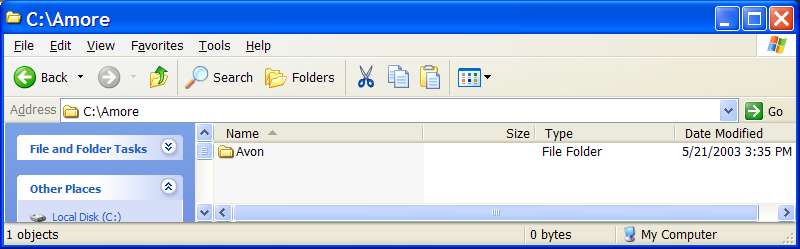
This tutorial assumes an OFPEC Tag of "Avon" (my identifier) and is based on packaging the audio files referred to in this sample config.cpp file. The first thing you have to do is to create a work copy of an AMORE Repository directory in your drive's root directory, as I've done on my computer's C: drive, as shown below:
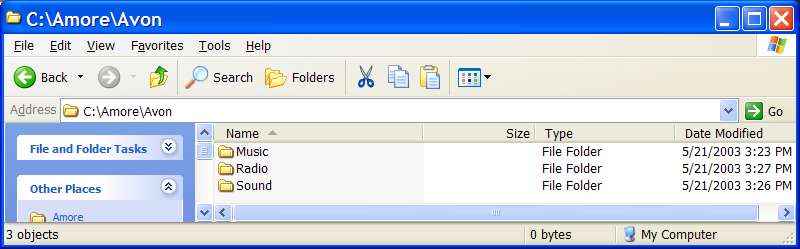
As the above example shows, you must also create a subdirectory named with your OFPEC Tag, within the AMORE Repository directory. Finally, within the OFPEC Tag name subdirectory, create Music, Radio and Sound folders, as shown in this example:
Now, copy the audio files you wish to distribute into the appropriate Music, Radio and Sound folders. Again, the examples that follow are based on audio files referred to in this sample config.cpp file. In addition to the audio files, make sure you place a text documentation file in the OFPEC Tag name subfolder. Make sure that the text documentation file's name conforms to AMORE's file naming conventions.
I suggest using the following sample text as a documentation template for AMORE Multimedia Installer ZIP files:
| AMORE Multimedia Installer Installation instructions: Extract the enclosed files to your OFP installation directory. Make sure you enable your ZIP utility's USE FOLDER NAMES option or its equivalent. Failure to do so will result in all enclosed files not loading into their folders within the AMORE Repository. AMORE Contributor: The Avon Lady Contributor's OFPEC Tag: Avon Contributor's Email Address: [email protected] File Date Release: May 19, 2003 Required AMORE Addon Installer: OFP_Amore_Avon_Addon_V1.30.EXE Audio files included: File name: redoct.ogg File type: music Title: Red October Theme Artist: OFP class name: Avon_RedOctoberTheme File name: subdive.ogg File type: sound Title: Subdive alarm Artist: unknown OFP class name: Avon_DiveAlarm File name: subsonar.wav File type: sound Title: Sonar ping sound Artist: unknown OFP class name: Avon_Sonar File name: torptubeout.ogg File type: sound Title: Topedo tube fire sound Artist: unknown OFP class name: Avon_TorpedoOut File name: torpfire1.wav File type: sound Title: Sub aptain's "Fire 1" shout Artist: unknown OFP class name: Avon_Fire1 |
Run WinZip and click on the New icon to start creating the AMORE Multimedia Installer. Select the directory in which you wish to create the file (just not in the newly created Amore directory).
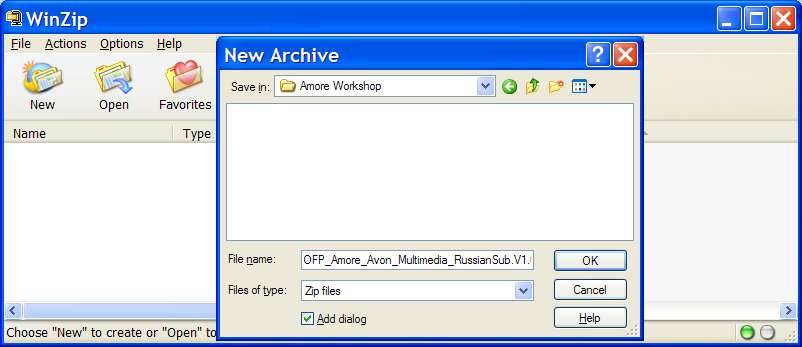
Above, in the File name field, I've specified that the AMORE Multimedia Installer file will be name OFP_Amore_Avon_Multimedia_RussianSub.V1.00.ZIP. This name conforms with the AMORE's file naming conventions for AMORE Multimedia Installers. Click OK and you'll be presented with WinZip's ADD window:
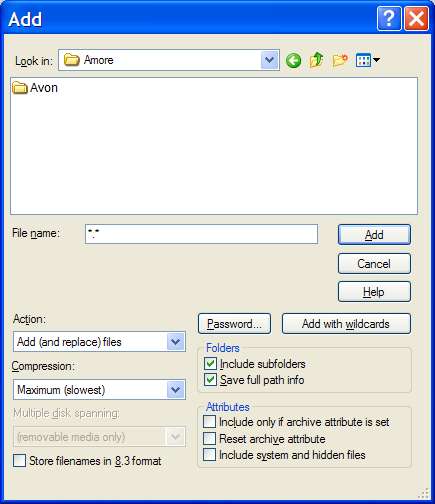
Set WinZip to look in the Amore directory you created earlier, as in the above example. Set all other fields and values as you see above. It is most important that both Folders options are checked. Click the Add With WildCards button. The following contents have been added to the ZIP file:
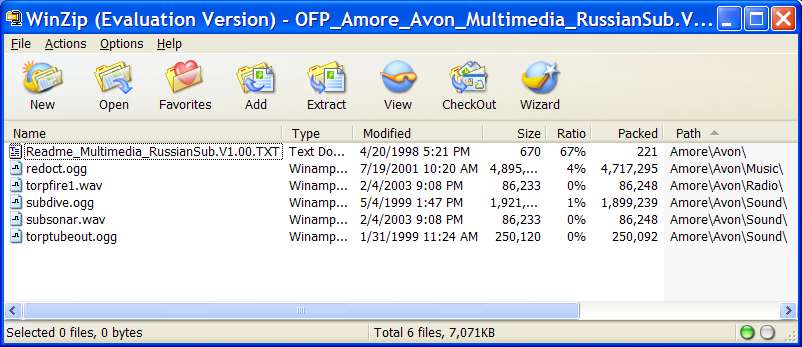
As you can see in the Path column on the right hand side of the window, WinZip has archived each file's complete AMORE Repository directory path.
Now when an OFP player opens the AMORE Multimedia Installer ZIP file and clicks on the Extract icon, all the player has to do is to set the Extract To directory to the path of OFP's installation directory, check the Use Folder Names option and click on the EXTRACT button.
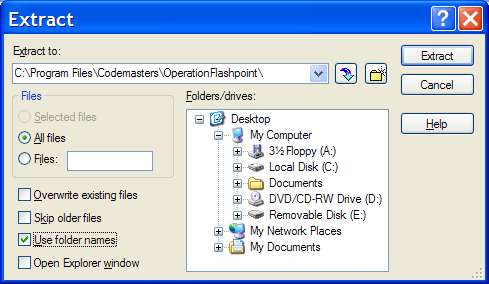
This will correctly extract all of the files into their appropriate AMORE Repository subfolders.
Before you distribute your AMORE Multimedia Installer ZIP file, make sure you test extracting it on your own PC, to confirm that everything is set up correctly.